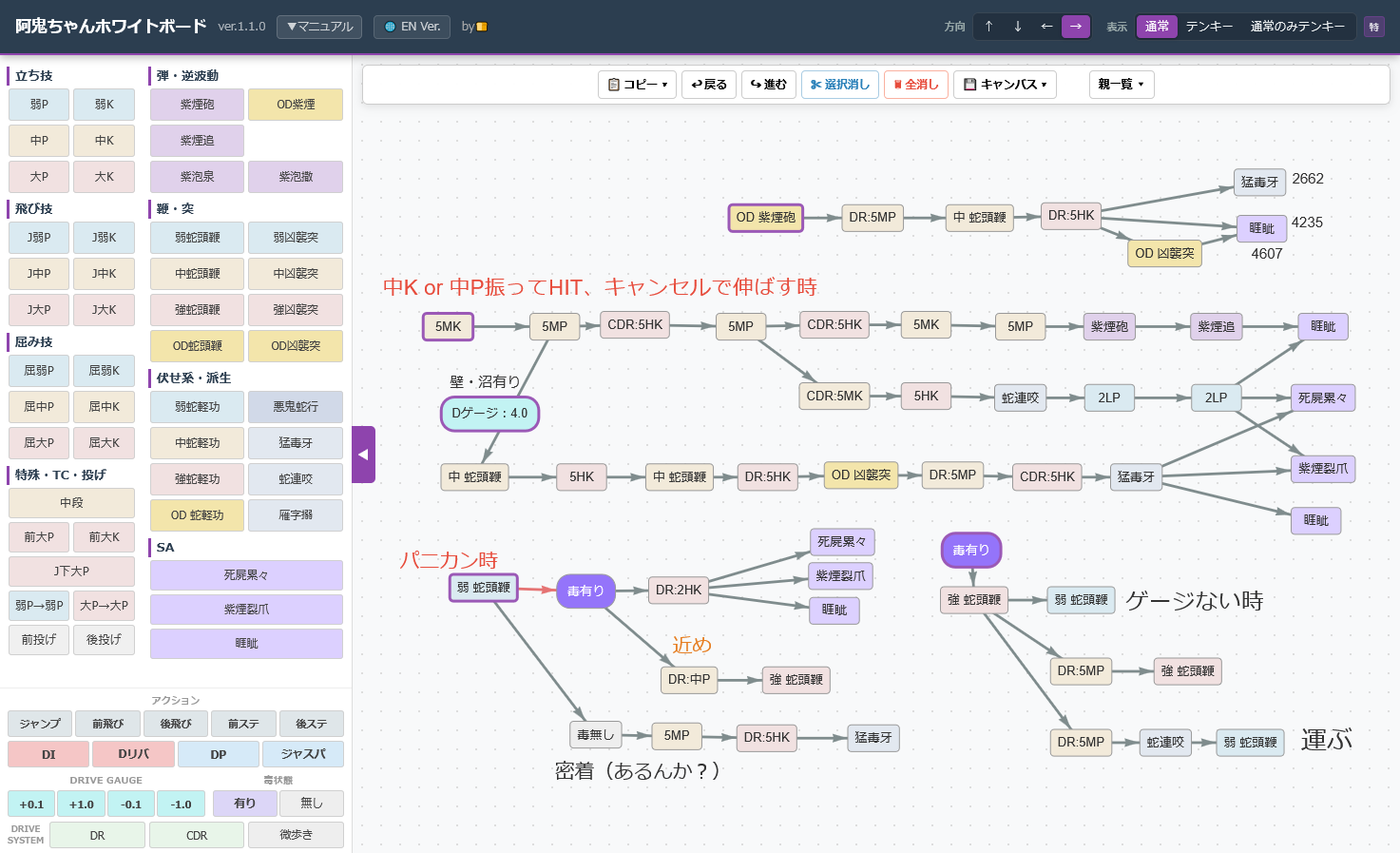
About This Tool
A tool for visualizing, organizing, and sharing A.K.I.'s combos and setplay as diagrams.
Starting from a button on screen, each click extends the combo route like a branching tree.
Use it as a mind map to visualize branching routes based on move choices, poison status, or gauge — including merging multiple branches into a single node.
※ Recommended for PC / tablet. Tested on Firefox and Chrome.
Basic Usage
Move buttons are listed in the left panel. Click one to add it to the canvas (right area), and it will automatically connect with an arrow to the currently selected button. The selected button is highlighted in light blue.
🖱️ Navigating the Canvas
| Pan the canvas | Drag on an empty area |
| Zoom in / out | Scroll the mouse wheel |
➕ Adding Nodes
| Add a move | Click a button in the left panel. It automatically connects from the currently selected node. To branch, select the desired branch point first, then click the next move. |
| Attach DR / CDR / Microwalk | Select the target node, then right-click the DR / CDR / Microwalk button in the left panel. (Left-click adds it as a new independent node.) |
🗑️ Deleting Nodes
| Delete one | Double-click the node to delete it. Surrounding nodes reconnect automatically. |
| Delete multiple | Select multiple nodes, then click ✂ Delete Sel. in the toolbar. A confirmation dialog appears before deletion. |
✅ Selecting Nodes
| Select one | Click the node (turns light blue) |
| Select multiple | Hold Ctrl and click to add to selection Hold Shift and drag on the canvas to box-select |
| Select a branch | Long-press a node to select it and all following nodes |
| Deselect | Click on an empty area |
↔️ Moving & Arranging Nodes
| Move one | Drag the node |
| Move a branch | Long-press to select the branch → drag |
| Auto-arrange selected | With multiple nodes selected, click the direction buttons (↑↓←→) in the top-right header to rearrange while preserving branch structure. WASD keys also work. |
↗️ Drawing & Removing Arrows
| Add / remove an arrow |
Right-click the source node → right-click the target node to add an arrow. Repeat the same action to remove it. Arrows can also connect to text notes — these appear as green dashed lines (color cannot be changed). |
| Change arrow color | Click an arrow to cycle through 4 colors: gray → red → blue → orange. |
💬 Text Notes
| Add a note | Double-click on an empty area and type your text. |
| Change color / size | With a note selected, middle-click (wheel click) to cycle text color, scroll the wheel to resize text. |
Toolbar
| Button | What it does |
|---|---|
| 📋 Copy ▾ |
Copy Combo Click a start node then an end node to copy all routes between them as text. All branching paths are included. Click the start node again to copy all routes from that node onward. Copy Nodes Click a start node then an end node to duplicate all nodes between them. Click the start node again to duplicate it and all following nodes. |
| ↩ / ↪ Undo / Redo | Undo or redo the last action. |
| ✂ Delete Sel. | Deletes all currently selected nodes. Can be undone. |
| 🗑 Clear All | Clears the entire canvas. This cannot be undone. |
| 💾 Canvas ▾ |
Save: Save the current canvas to a file (.txt format). Load: Load a saved file to restore the canvas. You can also drop a file onto the canvas. Screenshot: Save the full canvas as an image (including off-screen areas). |
| 📌 Roots ▾ | Lists all root (starting) nodes. Click one to jump to it on the canvas. |
Keyboard Shortcuts
Shortcuts are disabled while typing in a text field.
| Key | Action |
|---|---|
| W A S D | Change the direction for placing the next node (up / left / down / right) |
| E / Q | Add DR (Drive Rush) / CDR (Cancel Drive Rush) |
| R | Add a Drive Gauge (0.0) node |
| F / V | Add Poisoned / No Poison node |
| C | Toggle Copy Nodes mode on / off |
| Z / X | Undo / Redo |
⚠️ Notes & Disclaimer
- Free to use: Feel free to save images, post on social media, use in streams, etc.
- Use at your own risk: The creator is not responsible for any issues or damages arising from use of this tool.
- Personal project: Not all feature requests may be implemented. Thank you for your understanding.
Created by 👉️ 🍞 Atsugiri Shokupan
For inquiries, please use the website contact form or mond.